 Bookbndr
What you'll do: take your finished Word manuscript and turn it into an EPUB e-book, start to finish, in five short steps.
Bookbndr works as a five-step path along the top of the panel: Setup → Chapters → Matter → Design → Export. You can always go back to an earlier step.
Before you start
- Your book should be written in Word with chapter titles styled as Heading 1. That's how Bookbndr finds your chapters. (See Chapters, parts & sections.)
- Have your cover image handy if you have one.
1. Pick a project
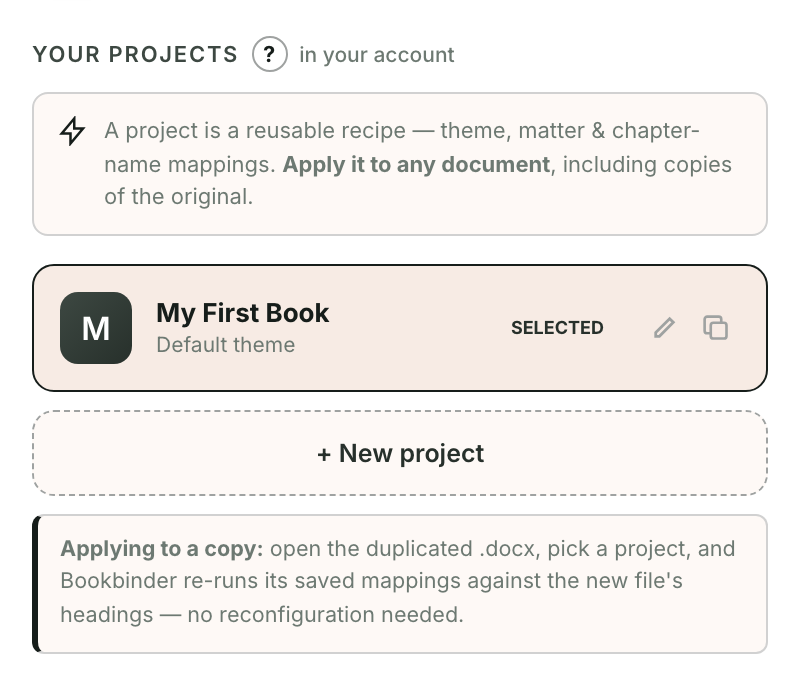
A project holds all your settings. Bookbndr starts you with one called My First Book — just select it and press Apply project. (Later you can create more, one per book.)
2. Set up your book
On the Setup step, fill in your book's title, author and language, and add a cover. Bookbndr also scans your document and flags any formatting problems it finds.

Details: Add your book's details · Add a cover image.
3. Check your chapters
On the Chapters step, Bookbndr shows the structure it detected. Make sure each heading is labeled correctly — a chapter, a part, or a section.
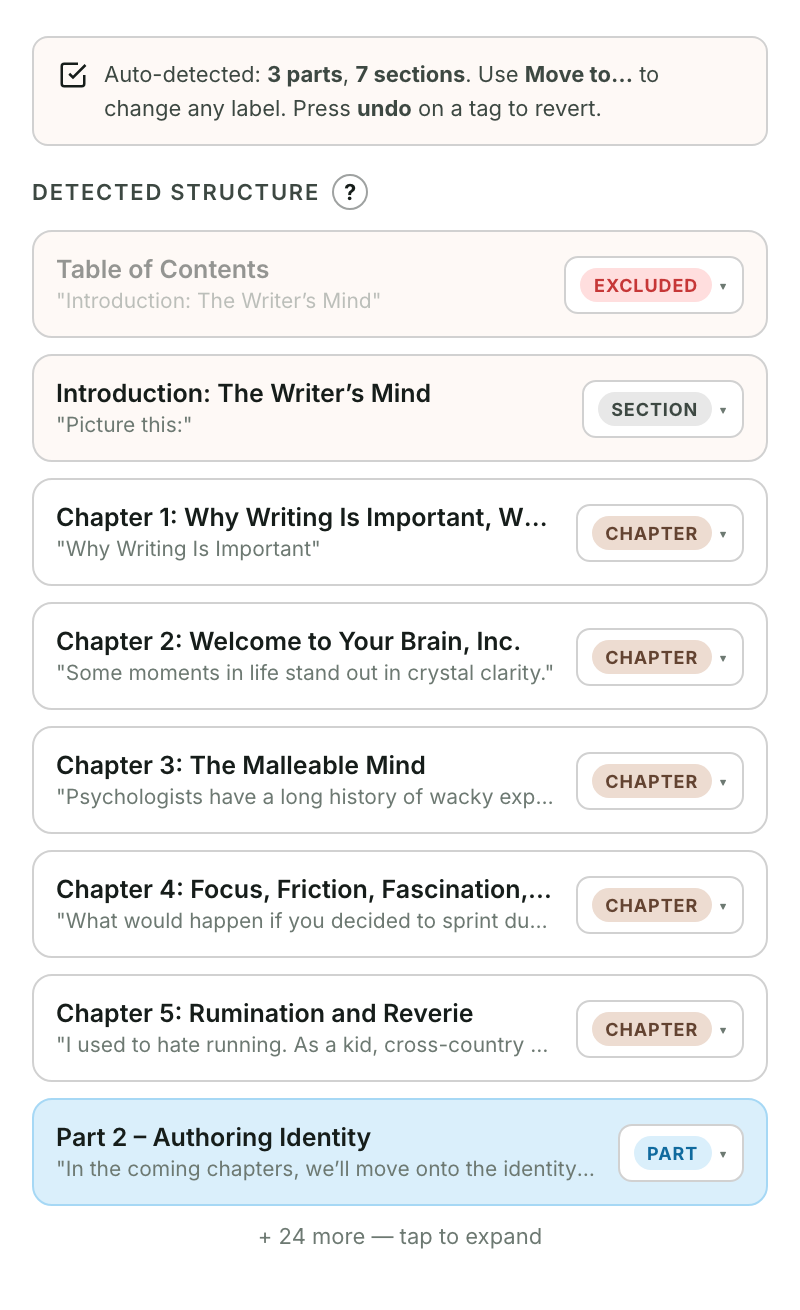
Details: Tell Bookbndr which headings are chapters, parts, or sections.
4. Choose the extra pages (Matter)
On the Book extras step, turn on the supporting pages your book needs — most importantly a copyright page. See What is front matter & back matter?.
5. Design and export
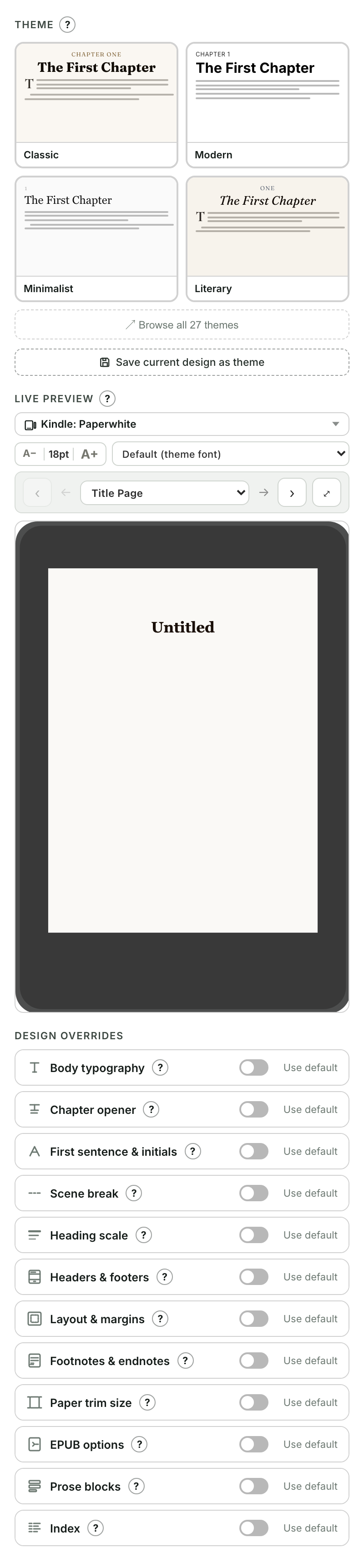
On the Design step, pick a theme for the look of your book.
Then on the Export step, press Generate EPUB and download your file.
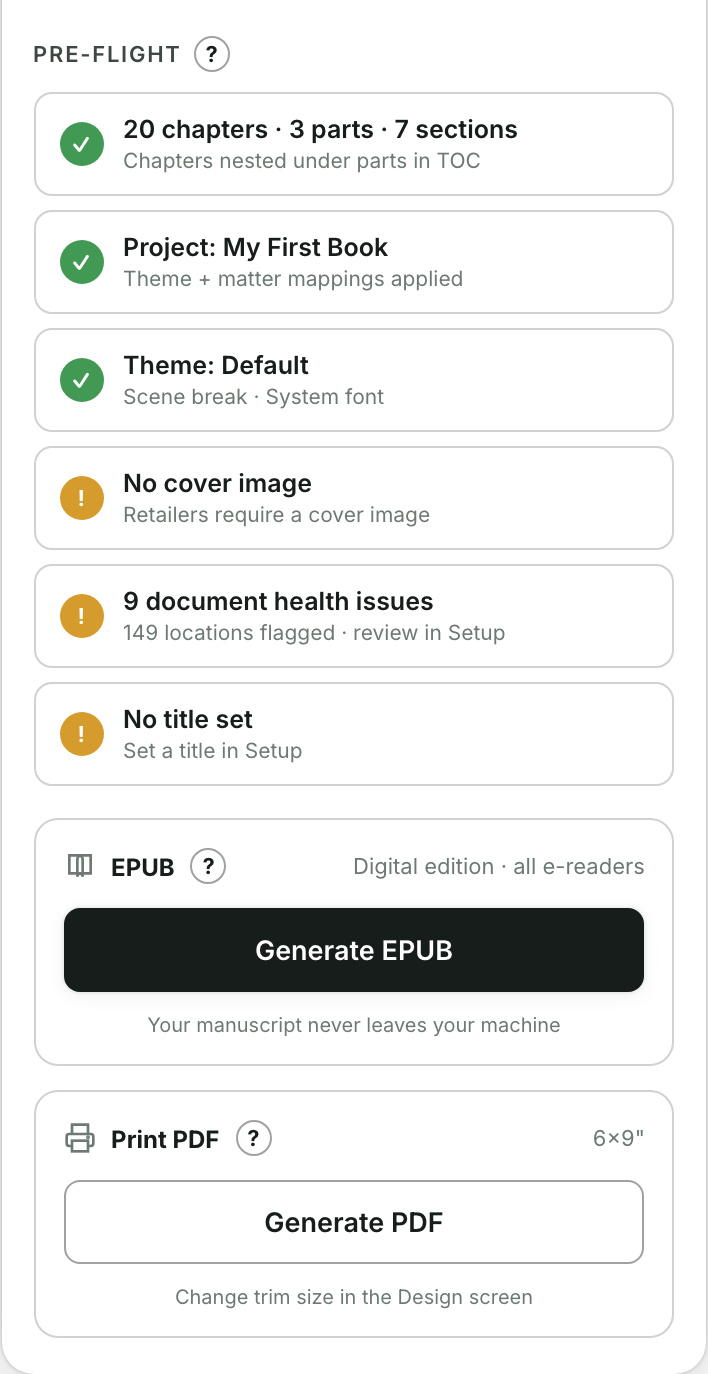
That's it — you have an EPUB ready to upload to any store. Full detail: Generate & download your EPUB.