 Bookbndr
What you'll do: check the structure Bookbndr detected and fix any heading that's been put in the wrong place.
When Bookbndr scans your document it automatically labels every heading with a zone — chapter, part, section, front, back or excluded. It's usually right, but it's worth a quick look on the Chapters step.
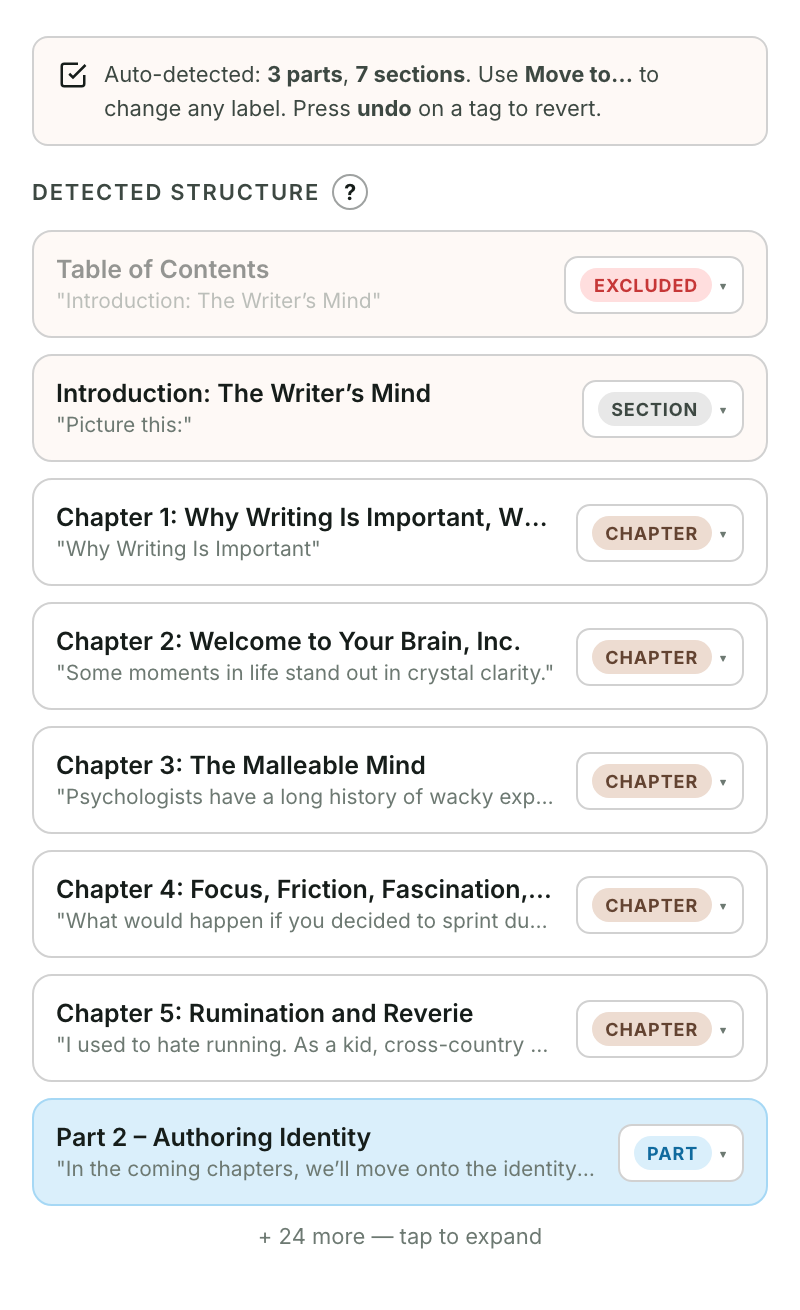
Read the labels
Each row is a heading from your document, with a colored tag showing its zone. A banner at the top summarizes what was auto-detected, for example "Auto-detected: 2 parts, 3 sections, 1 front, 1 back."
Change a heading's zone
- Find the heading you want to change.
- Click the zone tag on its row (it opens the Set zone menu).
- Pick the correct zone — Chapter, Part, Section or Excluded.
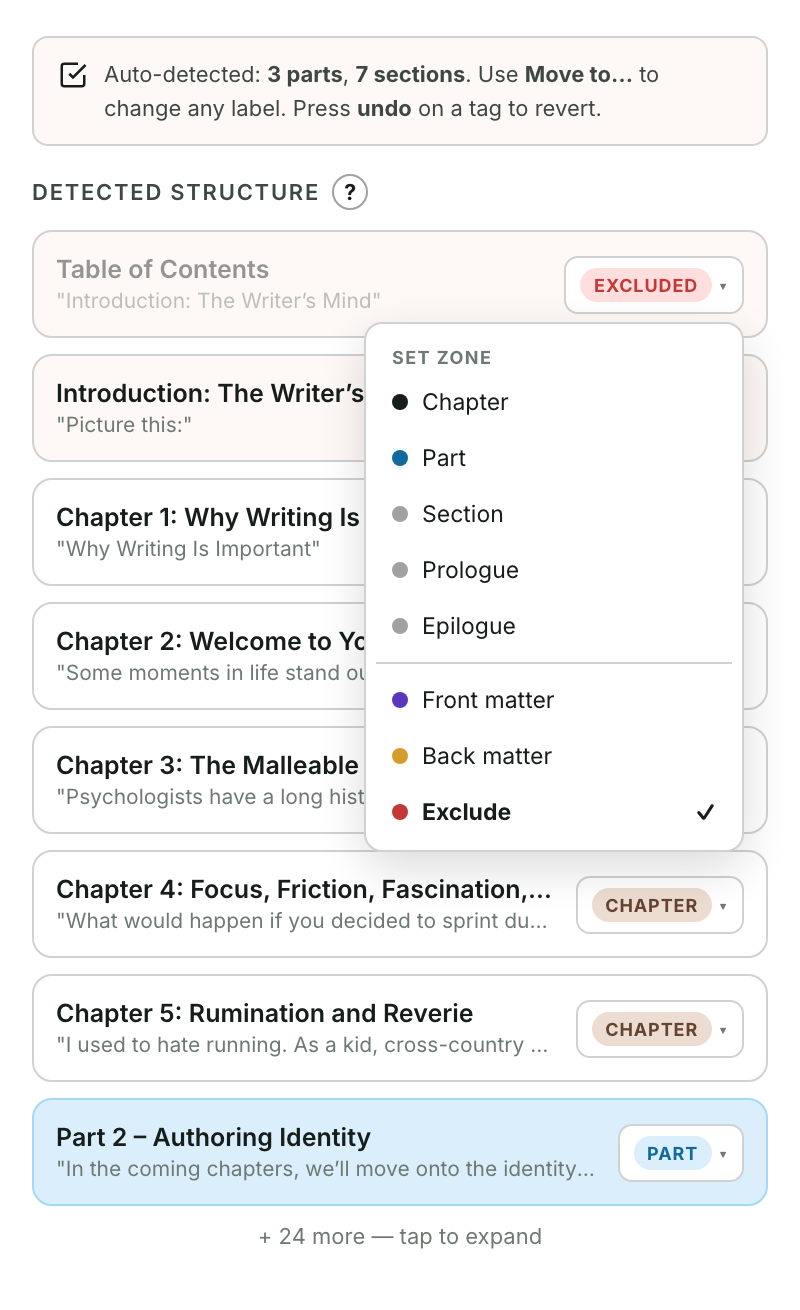
The tag updates immediately. If you change your mind, click undo on the tag to go back to the automatic guess.
Choose what appears in the contents
Use Include in contents on a heading's row to list or unlist it without removing its text from the book. The choice applies to EPUB and print. For example, keep the three acts listed and turn this off for each scene. Chapter numbers stay the same.
An excluded or merged heading's contents control is disabled. Its choice is saved if you restore it. If you unlist a part, its listed chapters move to the top level of the contents.
For extra pages, open the page on Book extras, expand Page options, and use Include in contents there.
Merge a heading into the previous chapter
Sometimes a Heading 1 is really part of the chapter before it (say, a section break that you styled as a big heading). In that heading's Set zone menu, choose Merge into [previous chapter] to fold it in. A Merged badge appears, with its own undo.
Nothing showing up?
If the list says "No headings found", your chapter titles aren't styled as Word headings. In Word, apply Heading 1 to each chapter title, then come back and press ↻ Re-scan document. Not sure how? See Use Word styles to structure your book.
→ Background: Chapters, parts & sections.