 Bookbndr
What you'll do: choose the finished size of your printed pages and the blank space around the text. Page size and page margins affect the print PDF. Paragraph indent, justification and hyphenation in the same panel also apply to EPUB.
Both live on the Design step. See What is trim size? and Margins, the gutter, recto & verso.
Choose a trim size
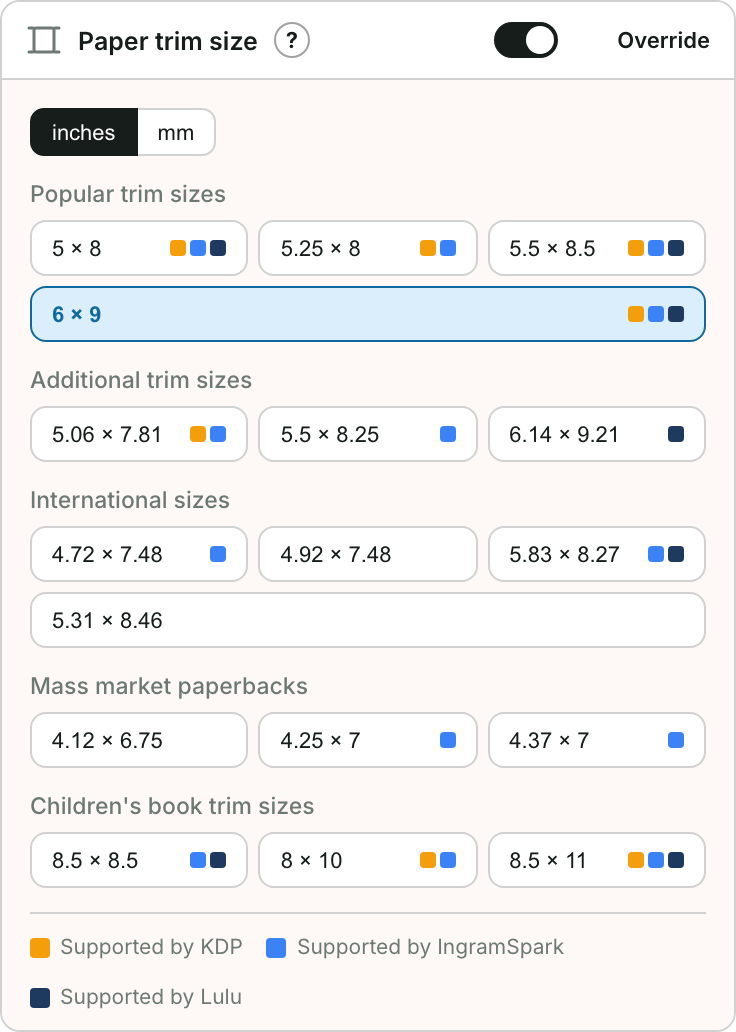
- Go to Design and open Book size & margins.
- Switch units between inches and mm if you like.
- Pick a size. Common novel sizes are listed, and each shows which retailers support it (KDP, IngramSpark, Lulu).
A trim size of 5″ × 8″ or 5.5″ × 8.5″ is typical for fiction.
Set the margins
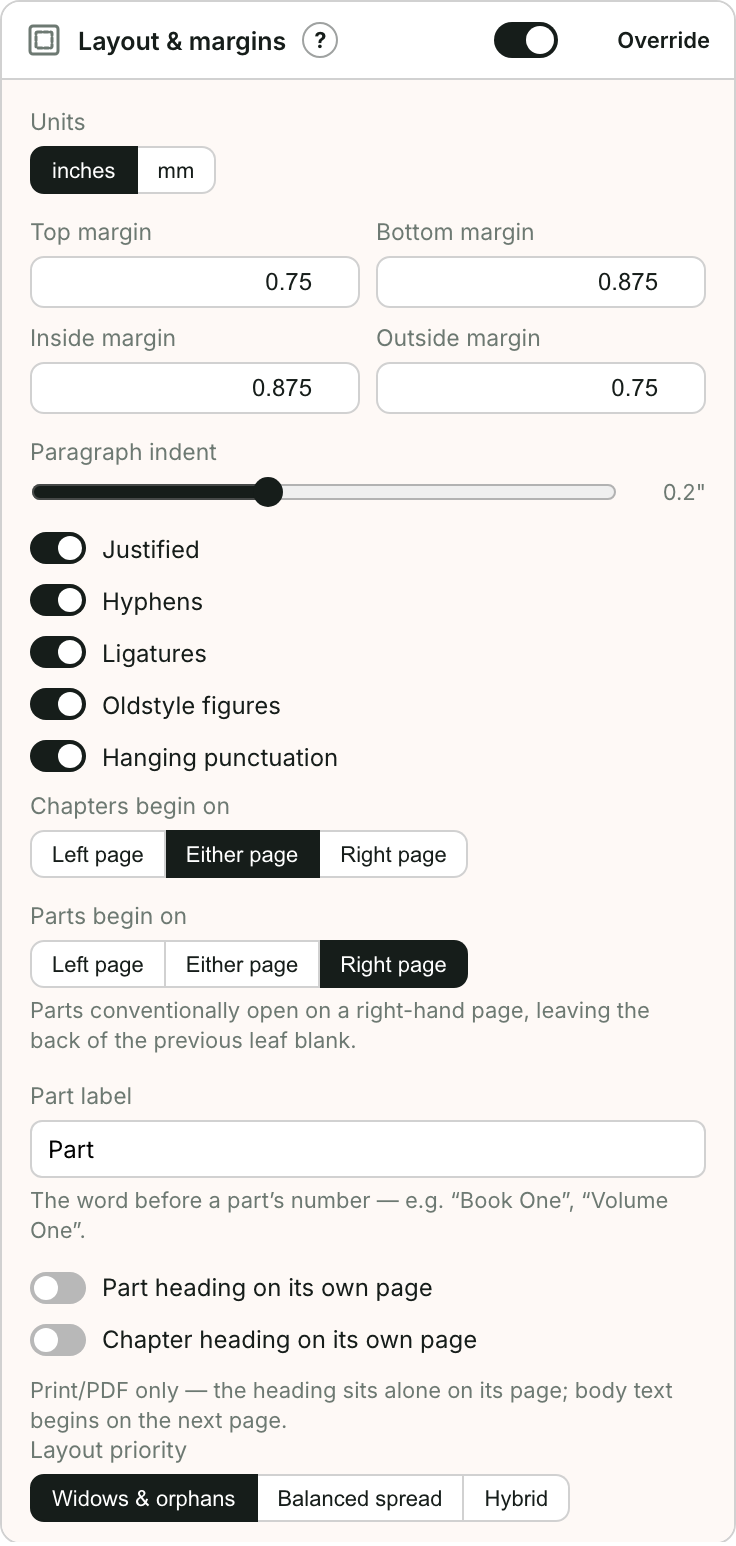
Open Book size & margins:
- Set Top, Bottom, Inside and Outside margins. The Inside margin is the gutter next to the spine — make it a bit larger so text isn't swallowed by the binding.
- Turn Justified on for flush edges, and Hyphens on to keep the spacing even.
- Hyphens is also available in Body text. Both controls change the same EPUB and print setting. Hanging punctuation applies to print only.
- Choose where chapters begin (left page, right page, or either) and whether parts and chapters get their own page.
Preview a Print device (see Preview on devices) to check it looks right, then make the file in Make a print-ready PDF.