 Bookbndr
What you'll do: see how your book will look on real e-readers, tablets and phones — and check the print layout — right inside Bookbndr.
Switch device
- Go to the Design step.
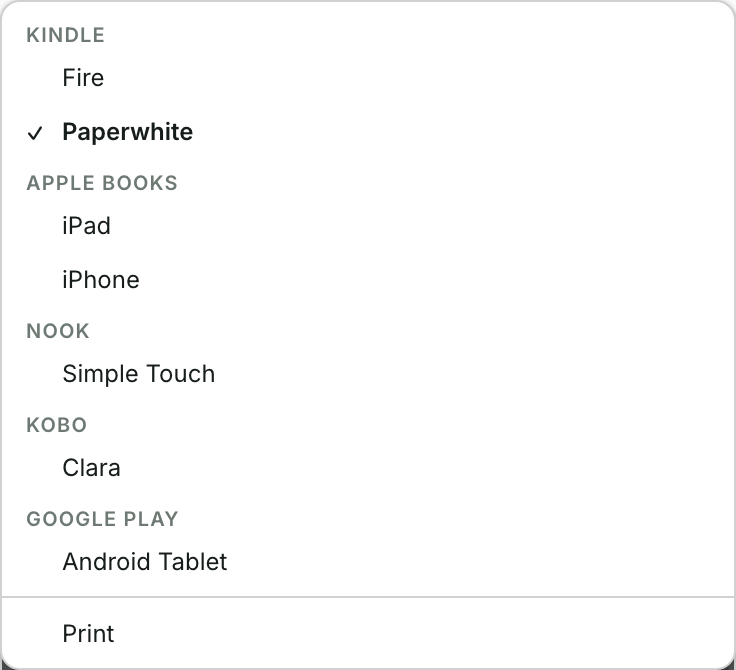
- In the Live preview, click the device button (it shows the current device).
- Pick a device from the popover. They're grouped into E-readers (Kindle, Kobo, Tolino…), Tablets (iPad, Galaxy…), Phones, and Print.
The preview re-renders to match that screen's size and shape, so you can spot anything that looks off before you export.
Reader preferences (e-book)
For e-reader and tablet previews you can also mimic what a reader might do:
- adjust the font size with A− / A+,
- choose a different reading font,
- use the moon button to switch the preview into a low-glare night mode.
This shows how your book reflows — a reminder that in an EPUB the reader, not you, has the final say over font size and page breaks.
Bookbndr remembers the reading font, font size and night-mode choice across sessions and uses them for every project. These are preview preferences only; they do not alter the EPUB you export.
Print preview
Choose a Print device to preview fixed pages at your chosen trim size. See Set page size & margins.