 Bookbndr
What you'll do: set up the small repeating text at the top of each printed page and choose where page numbers go. These are for the print PDF.
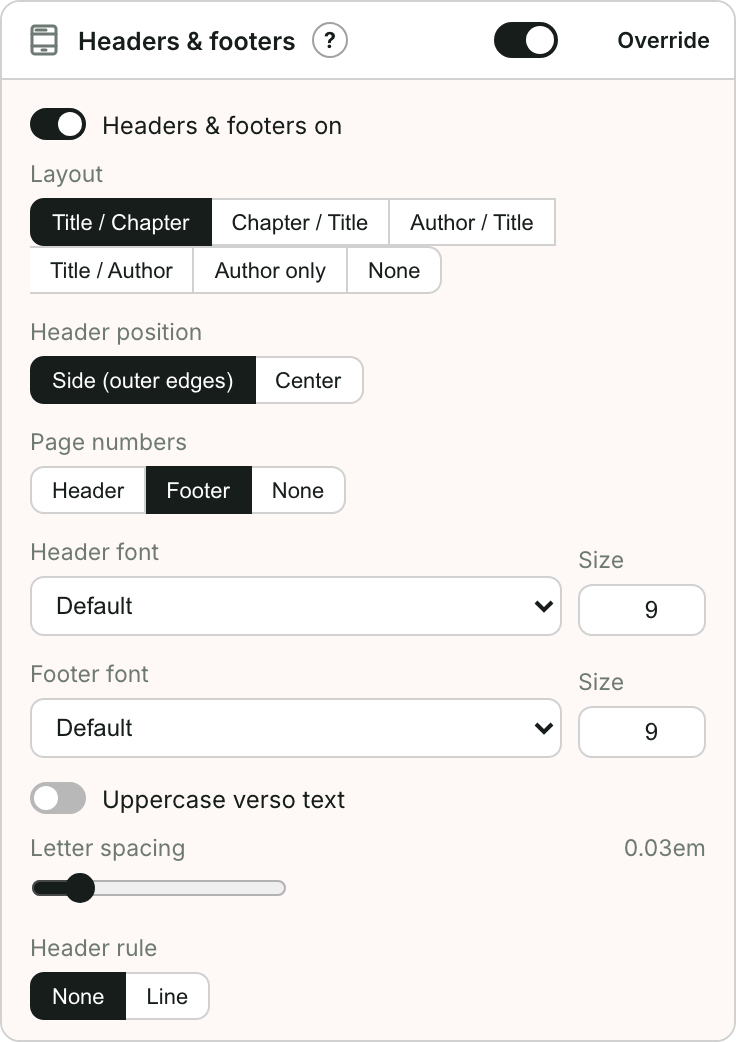
This is the Headers & footers section on the Design step. See Running heads & page numbers for the idea.
Steps
- Go to Design and open Headers & footers.
- Turn Headers & footers on.
- Choose a Layout — what shows on the left and right pages, for example Author / Title, Title / Chapter, or Title only (the book title on both pages, common in novels). A running head traditionally shows the book title on one side and the chapter on the other.
- Set Header position (toward the outer edges or centered) and where page numbers go (header, footer, or off).
- If page numbers are in the footer, choose a Footer position: the outer corners, or Centered at the foot of the page.
- Choose the Page number on chapter openers: the same place as every other page, Foot, centered, or None.
- Fine-tune the font, size and letter-spacing, and set the Text case (as typed, uppercase, or small caps) and Color. Printed books usually set running heads in small capitals or letterspaced capitals, in the same color as the text; the muted grey is a softer screen-friendly choice.
- Add an optional separator or rule.
Tips
- Running heads are left off chapter-opening pages, where they'd look cluttered. The page number follows your Page number on chapter openers choice.
- Many printed books keep the page number in the header but drop it to the foot, centered, on chapter-opening pages. Choose Foot, centered for that look.
- These settings don't appear in the e-book — e-readers add their own progress indicator.