 Bookbndr
What you'll do: choose where your Word footnotes appear — at the bottom of the page, the end of each chapter, or the end of the book — and how big all notes are.
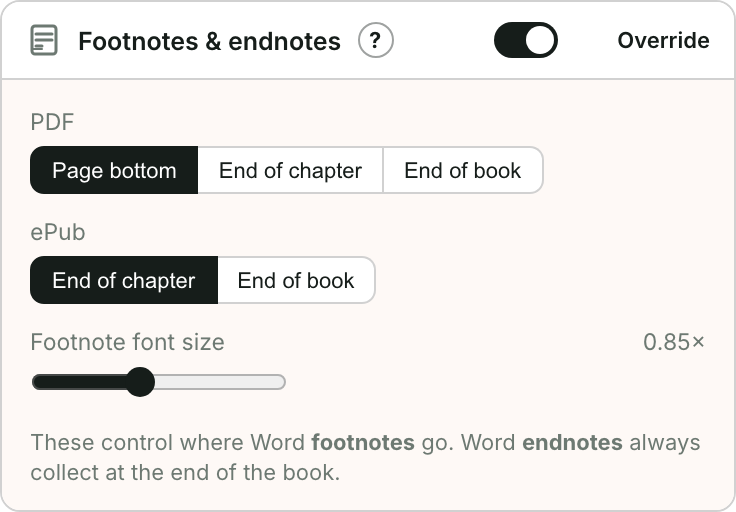
This is the Footnotes & endnotes section on the Design step. See Footnotes vs endnotes for the difference.
Steps
- Go to Design and open Footnotes & endnotes.
- PDF placement — for the print book, choose Page bottom (footnotes at the foot of the page), End of chapter, or End of book.
- EPUB placement — for the e-book, choose End of chapter or End of book. (True bottom-of-page footnotes don't exist in a reflowing e-book; instead each note becomes a tappable link.)
- Markers — choose how footnotes are marked: Numbers, Symbols (the traditional * † ‡ § ‖ ¶ sequence, doubling up after six), or Letters. The same marker appears at the reference, on the note, and on the e-book's return link. Endnotes are always numbered.
- Rule — the line that separates notes from the text: Full width, Short (a short rule at the left, the usual form in printed books), or None. It applies at the foot of the page in print and above an end-of-chapter Notes section in both formats.
- Footnote font size — make the notes a little smaller than the body text with the multiplier.
Word endnotes always go to the back
The placement setting governs Word footnotes. Word endnotes always render at the end of the book — that's what making them endnotes means. When your document has endnotes, Bookbndr turns on the Endnotes section in Front & back matter; drag it to reorder it among your other back matter (it belongs ahead of the bibliography and index). With End of book placement, footnotes join the endnotes there in one Notes section.
Where notes come from
Bookbndr reads the footnotes and endnotes already in your Word document — you don't re-enter them here. This section only decides how and where they're shown.