 Bookbndr
What you'll do: fold a stray heading into the chapter before it, so it stops starting a brand-new chapter.
Sometimes a heading was styled as Heading 1 in Word but is really just a part of the chapter above it — a sub-heading or a section break. Merging fixes that without you having to change anything in Word.
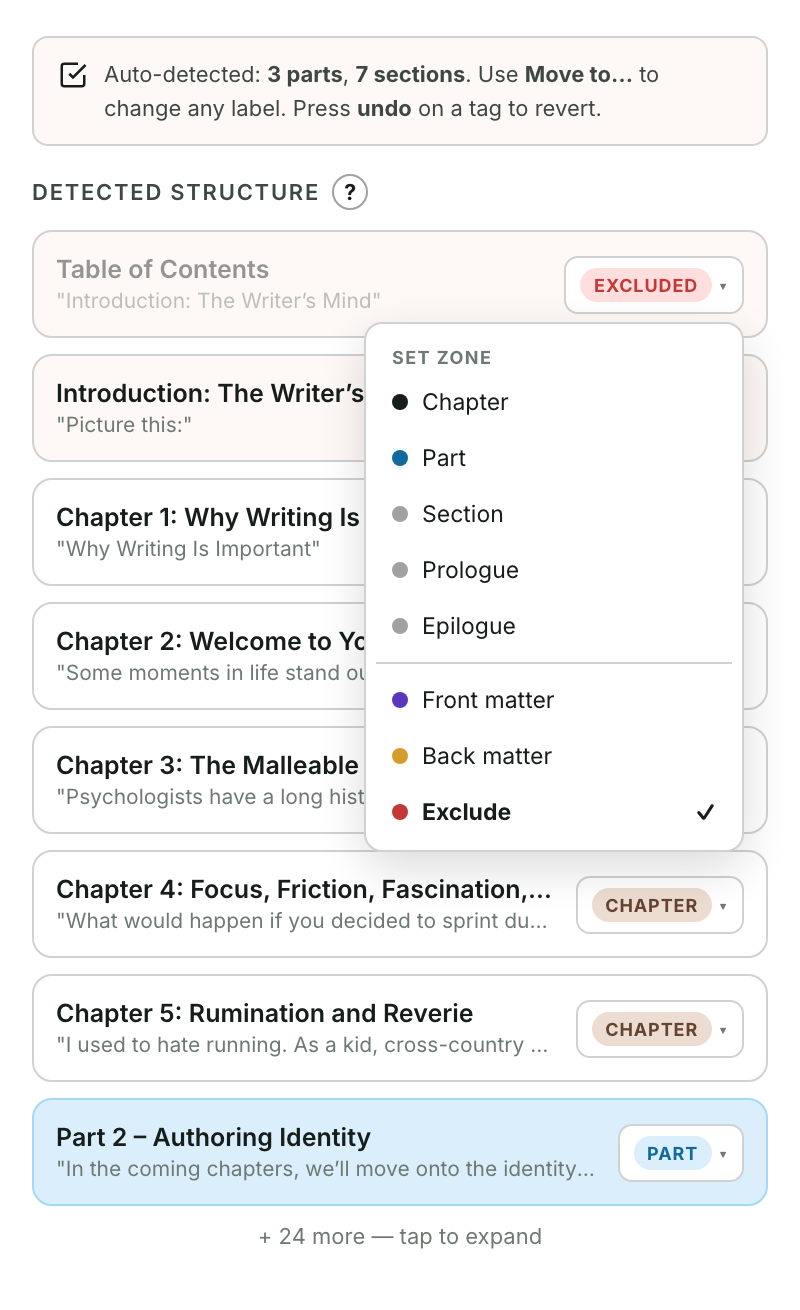
Steps
- Go to the Chapters step.
- Find the heading that shouldn't be its own chapter.
- Click the zone tag on its row (it opens the Set zone menu).
- Choose Merge into [previous chapter].
The heading gets a Merged badge and now flows inside the chapter above it.
Undo a merge
Click undo on the Merged badge to separate it again and restore it as its own heading.
Tip: if instead you want the heading to be a smaller heading within the chapter rather than merged away, change its zone to Section — see Tell Bookbndr which headings are chapters, parts, or sections.