 Bookbndr
What you'll do: let Bookbndr build your table of contents automatically instead of using one typed into your Word document.
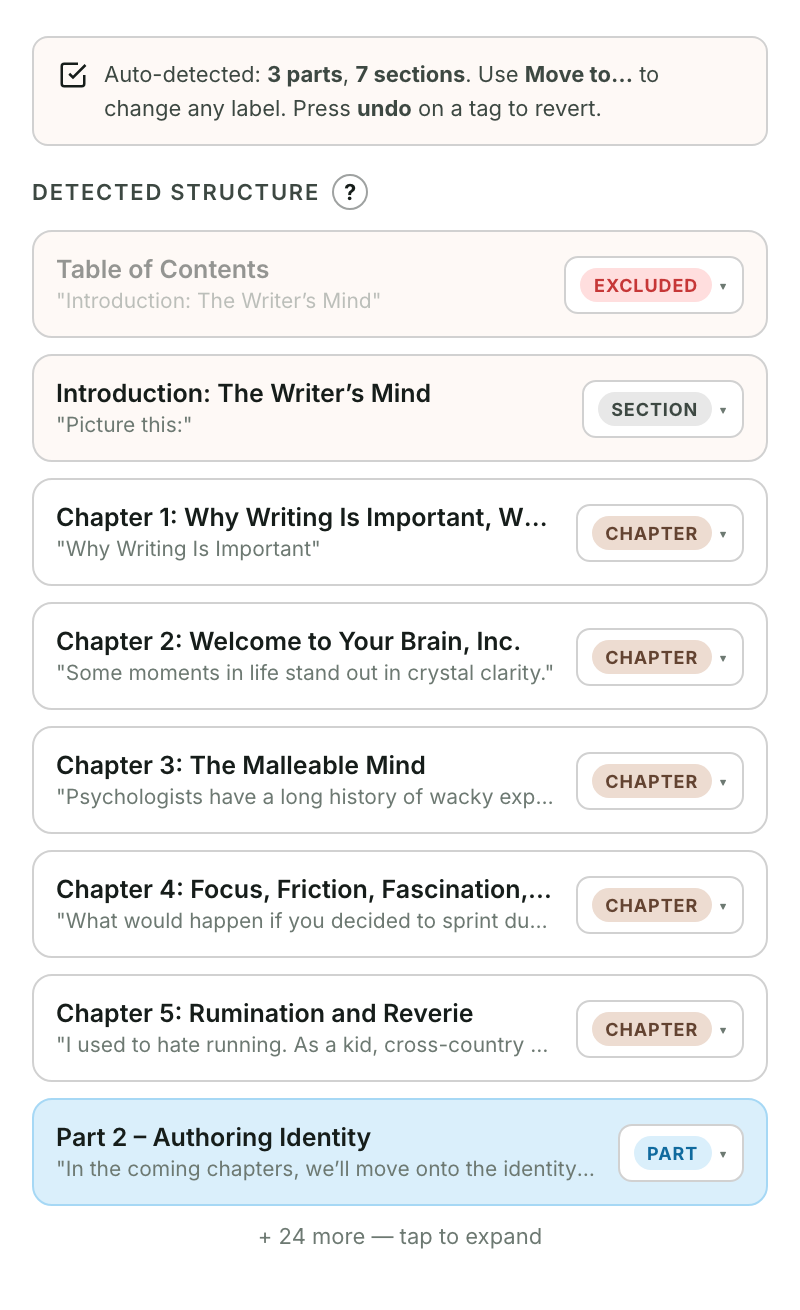
Why use the automatic one
If your Word document already has a typed table of contents, Bookbndr marks it as Excluded — because its own generated version is better for an e-book:
- every entry is a working link a reader can tap,
- it always matches your final chapter structure,
- in the printed book it shows accurate page numbers.
A hand-typed contents page can't do those things in an e-book.
What to do
For the printed book, choose the contents page's layout under Contents page on the Design step: Plain (titles left, page numbers right), Dot leaders (the classic dotted line from title to number) or Centered (centered entries with the number after the title).
On the Chapters step, leave any detected "Table of Contents" heading set to Excluded. If you un-exclude it, Bookbndr shows a reminder suggesting you keep the automatic one.
The generated contents is controlled on the Book extras step, where Table of Contents appears as a front-matter section you can turn on or off and reorder. See What is front matter & back matter?.
Choose the entries
Use Include in contents on the Chapters step for each part, chapter, or section. Extra pages have the same control under Page options in Book extras. Turning it off keeps the section in the book and removes its contents entry. Saved books keep their existing defaults until you change a choice.
If every section is unlisted, the visible contents page has no entries. EPUB still provides a Start of content navigation link so readers can open the book.