 Bookbndr
What you'll do: tidy up awkward page breaks in the print PDF — stranded single lines and badly split paragraphs.
These controls are in Layout & margins on the Design step. See What are widows & orphans?.
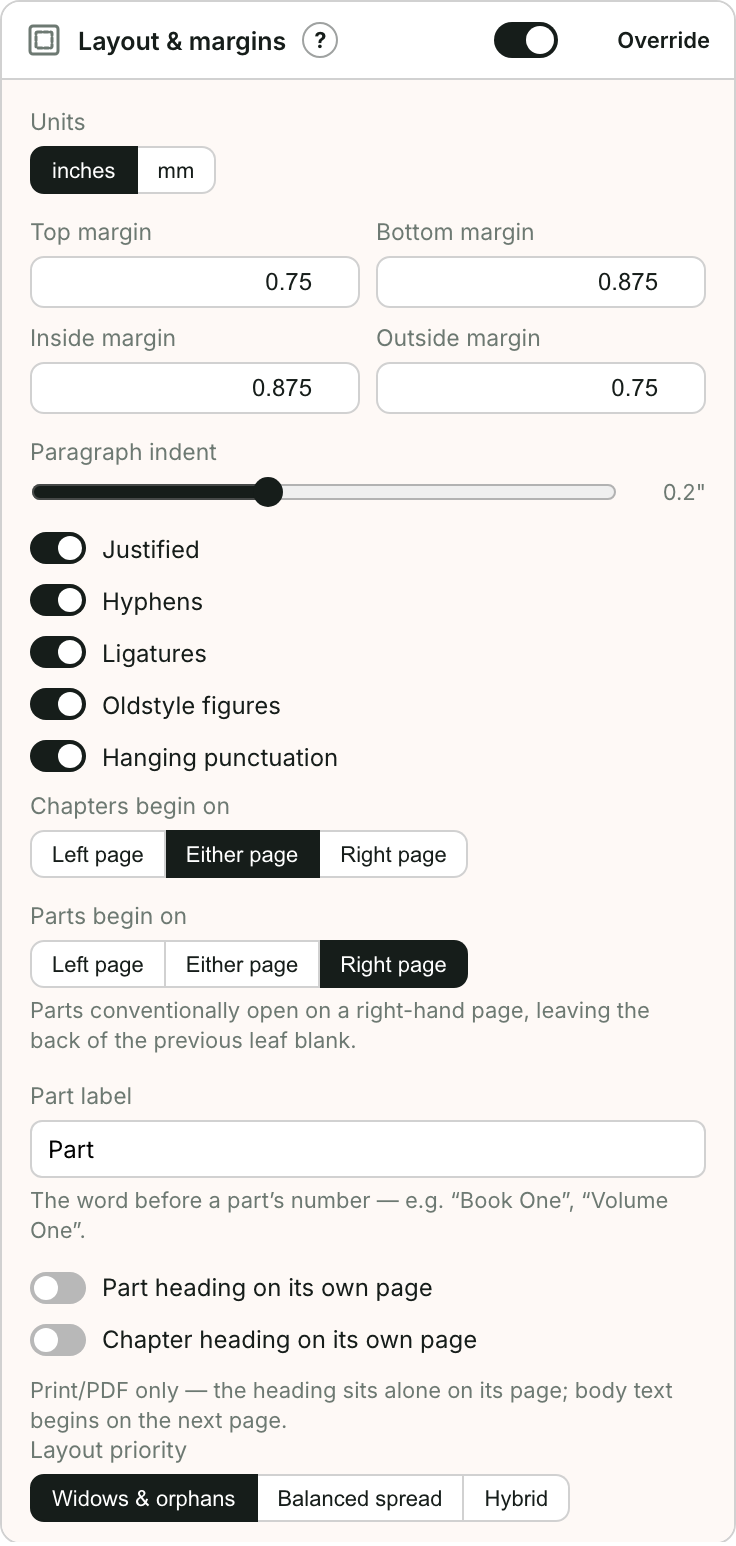
Layout priority
Open Layout & margins and choose a Layout priority, which tells Bookbndr what to favor when a paragraph won't fit neatly at the bottom of a page:
- Widows & orphans — never leave a lone line stranded; nudge lines to the next page instead.
- Balanced spread — keep the two facing pages the same length.
- Hybrid — a sensible balance of both.
Page-break options
In the same section you can decide:
- whether chapters begin on a left page, right page, or either — or run on, starting a little way down the same page the previous chapter ended on, as short-story collections and some older novels do,
- whether a part heading gets its own page,
- whether a chapter heading gets its own page.
From your Word document
Layout priority sets the overall behavior, but Bookbndr also respects three pagination settings you may have already applied in Word itself. These come from Word's Paragraph → Line and Page Breaks tab — on a single paragraph, or, more usefully, baked into a paragraph style (so every Heading 1 behaves the same). When building the print PDF, Bookbndr honors them automatically — there's nothing extra to switch on:
- Keep with next — stops a paragraph being split from the one after it (ideal for a subheading, so it never sits stranded at the foot of a page).
- Keep lines together — keeps all of a paragraph's lines on the same page rather than letting them break across two.
- Widow/Orphan control — Word turns this on by default, which is the same protection Layout priority gives you. If you deliberately turn it off for a paragraph in Word, Bookbndr relaxes the rule there too and allows a lone line.
In short: Layout priority is the baseline for the whole book, and your Word keep settings are added on top for the paragraphs that need special treatment.
These only affect the printed book. In an EPUB the reader's device decides where pages fall, so widows and orphans aren't something you control there.