 Bookbndr
What you'll do: pick a ready-made look for your book, then (optionally) save your tweaked version as a reusable theme.
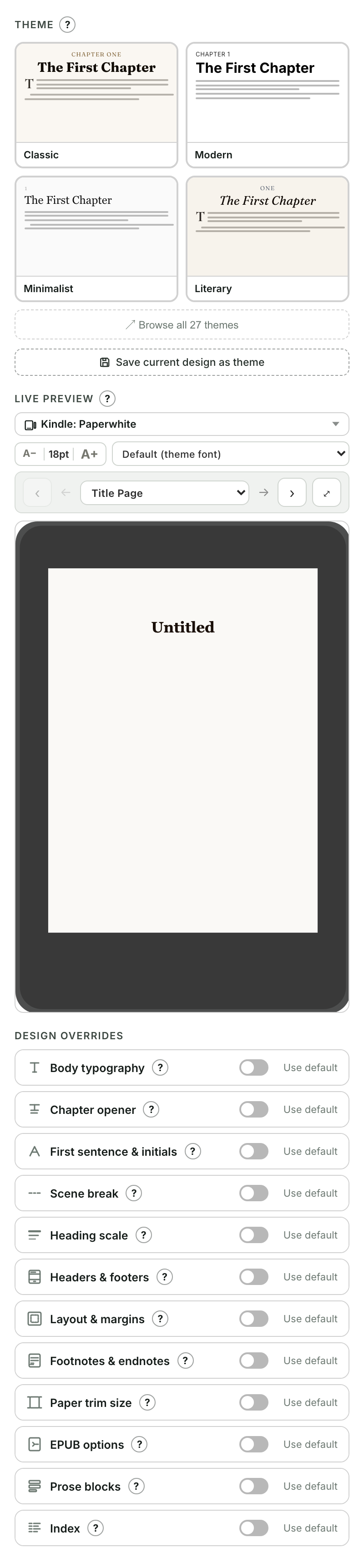
Pick a theme
- Go to the Design step.
- Under Theme, browse the featured designs, or click Browse all themes to see the full library. It is arranged in four groups: Core (clean, conventional designs that match how trade publishers set novels today), Genre & heritage (decorated looks with a strong flavor), Non-fiction & drafts, and Illustrated & original (Bookbndr's original themes, with chapter backgrounds, ornaments and bolder color). Each theme has a one-line note on what makes it distinctive.
- Click a theme to apply it. Your whole book instantly takes on its fonts, spacing and chapter styling — watch the live preview update.
A theme is just a starting point. Everything below it on the Design step — fonts, chapter openers, margins and so on — can be adjusted.
Save your design as a theme
Once you've tweaked things the way you like:
- Click Save current design as theme.
- Give it a name and confirm.
It now appears under Saved themes, ready to apply to other books. Delete a saved theme with the × on its card.
A theme controls the look. To carry your whole setup (theme plus book details and chapter choices) to another document, use a project instead.